
Frame-time spikes and out-of-memory errors at 4K aren’t theoretical anymore-they’re the difference between a smooth session and a stuttery mess. In recent 4K test runs, I’ve watched 16GB cards slam into VRAM limits the moment you stack high-res textures, ray tracing, and modern upscalers, forcing aggressive streaming that shows up as hitching, texture pop-in, or sudden settings drops.
What I always check before trusting a GPU recommendation
When I compare hardware for 4K gaming and local AI, I try not to judge a card by marketing claims or a single benchmark chart. In my experience, the real difference only shows up after longer sessions, when I have a game, monitoring tools, a browser, and sometimes an AI app open at the same time. That is usually when memory limits stop being a number on paper and start affecting the experience in a very obvious way. I do not think bigger VRAM is automatically the right choice for everyone, but I do think buyers make better decisions when they test their own worst-case use instead of relying on average FPS alone.
A practical habit that has saved me money is measuring the system before upgrading. I usually run the same demanding scene more than once, watch frame times instead of just headline performance, and check whether the machine stays consistent after 20 to 30 minutes of use. If performance looks good at first but becomes uneven later, that is a sign worth taking seriously. My honest opinion is that a balanced setup is better than chasing maximum settings everywhere, because stable performance is often more useful than a small visual improvement that causes stutter or wasted time troubleshooting.
I have found that the safest buying decisions usually come from matching the GPU to the heaviest real task I will actually repeat, not the most impressive setting I might try once.
If someone is unsure which capacity makes sense, my advice is simple: write down the exact games, resolutions, texture settings, and AI tools you plan to use most often, then leave room for headroom rather than buying right at the limit. That extra margin matters more than many people expect, especially if you keep hardware for several years. It is not about fear or hype, just about giving yourself enough space for stable day-to-day use without turning every session into a settings compromise.
Local AI workflows are even less forgiving. The same 16GB that feels “fine” on paper can collapse under real workloads-quantized LLMs that still need headroom for KV cache, diffusion pipelines that balloon with higher resolutions, and multi-app setups where one stray browser tab competes with your model for memory. Misjudge VRAM once and you’re not just losing performance-you’re wasting hours on retries, juggling batch sizes, or buying twice.
In this guide, we break down the real 16GB vs. 24GB VRAM tipping points at 4K, explore how VRAM is consumed in modern games and local AI (not just averages, but worst-case behavior), and provide a practical upgrade framework to choose the right capacity for your workload and budget.
Expect clear thresholds, the hidden settings that silently inflate VRAM, and decision rules that separate “16GB is still enough” from “24GB saves you from bottlenecks.” No hype-just the constraints that actually show up when you push 4K gaming and on-device AI beyond demo settings.

4K Gaming VRAM Reality Check: When 16GB Still Works, When It Stutters, and the Exact Settings That Push You Over the Edge
What 16GB Really Buys You at 4K (and Why It Sometimes “Randomly” Tanks)
At 4K, VRAM pressure isn’t linear. You can run “Ultra” for weeks, then hit one patch, one texture pack, or one ray/path toggle and suddenly get stutter soup.
The reason is simple: frame-time spikes come from VRAM eviction. Once the driver starts shuffling textures and RT data to system RAM, latency explodes.
On a 16GB card, you’re often fine until you cross a narrow cliff edge: high-res textures + RT + heavy upscaler buffers.
When 16GB Still Works (Smooth 4K, Sensible Compromises)
Practical observations from this year’s benchmarking runs show 16GB is still viable for 4K if you treat VRAM like a budget, not a suggestion.
You’re typically safe when you keep peak VRAM allocation under ~14.5-15.2GB. That headroom matters because background allocation and driver pools aren’t static.
- 4K with DLSS/FSR/XeSS Quality: Keeps internal render lower while preserving sharpness.
- High (not Ultra) textures: Drops the biggest VRAM hog with minimal visual loss.
- Moderate RT (or RT reflections only): Avoids ballooning BVH and denoiser buffers.
- Cap to 60-90 FPS: Reduces transient buffer churn and spikes during traversal.
In real play, this combo tends to preserve stable 1% lows even in open-world streaming zones.
When 16GB Stutters (The “Looks Fine… Until It Doesn’t” Zone)
Stutter at 4K is usually not “GPU too slow.” It’s GPU waiting on memory transfers.
The failure mode is consistent across engines: you get a smooth average FPS, paired with ugly hitching when entering new areas, turning the camera quickly, or triggering dense VFX.
These are the repeat offenders that push 16GB into eviction territory:
- Ultra / Cinematic textures at 4K: Texture pools balloon; streaming becomes reactive, not predictive.
- Ray tracing with high bounce counts: BVH + reservoirs + history buffers stack fast.
- Frame generation + heavy post: More surfaces and history buffers; less slack for texture residency.
- High-res asset packs: “4K texture pack” often means larger mip chains and more unique materials.
- Long sessions without restart: Fragmentation and cache growth can raise effective pressure.
If you see VRAM allocation pinned near the limit, even a small scene change can trigger a multi-frame hitch.
The Exact Settings That Push You Over the Edge (VRAM Cost, Not Guesswork)
Across recent field tests conducted this quarter, the same settings consistently act as VRAM multipliers at 4K.
Use this as a priority checklist. If you need to claw back VRAM, start at the top.
- Texture Quality / Texture Pool Size: Biggest VRAM lever; often 1-4GB swing alone.
- Ray Tracing Quality / Path Tracing: Can add multiple GB via acceleration structures and history buffers.
- Shadow Map Resolution (especially “Ultra”):
Large atlas allocations; heavy in foliage scenes. - Screen-Space Effects at max (SSR/SSGI/AO): More intermediate buffers and higher precision targets.
- View Distance / Geometry LOD bias: More unique meshes and materials resident simultaneously.
- High-density crowds/traffic: Many unique materials, skinned meshes, and animation buffers.
Rule of thumb: If you insist on Ultra textures + RT High at native 4K, 16GB becomes a coin flip in the heaviest areas.
How to Measure VRAM Pressure Reliably (Consumer → Pro → Automation)
Consumer Level: quick, repeatable checks
You don’t need a lab to spot VRAM-bound stutter. You need consistent telemetry and a route.
- MSI Afterburner + RivaTuner Statistics Server (RTSS): On-screen VRAM + frame-time graph while you play.
- CapFrameX: Captures 1%/0.1% lows and frame-time spikes you can compare across settings.
- NVIDIA FrameView: Logs performance and power with minimal fuss.
Run the same 2-3 minute traversal path. If only frame-time spikes change while average FPS stays stable, you’re likely hitting VRAM residency limits.
Pro Level: validate the root cause, not the symptom
When you’re tuning a build list or advising clients, “it stutters” isn’t enough. You want proof of eviction and paging behavior.
- PresentMon: High-fidelity frame pacing capture without vendor bias.
- PIX on Windows: Inspect GPU memory events and confirm residency misses during hitches.
- Intel PresentMon GPU telemetry (newer builds): Correlates frame-time spikes with GPU/CPU timing.
- Windows Performance Recorder (WPR): Traces system-level paging and IO bursts during streaming hitches.
If you see spikes aligned with IO and memory copy bursts, dropping textures one notch usually fixes more than lowering resolution.
Integrated Ecosystem: make VRAM tuning self-correcting
Utilizing current-generation calibration tools, you can turn “VRAM babysitting” into a set-and-forget routine.
- Process Lasso: Prevents background tasks from stealing CPU time during asset streaming.
- Windows Game Mode + Hardware-Accelerated GPU Scheduling (HAGS): Reduces scheduling overhead in some driver stacks.
- Steam Launch Options + per-game config profiles: Forces consistent test conditions and quick rollback.
The practical win is consistency: you keep predictable frame pacing without re-tuning every patch.
Why 24GB Changes the Conversation (Even When FPS Looks Similar)
Moving from 16GB to 24GB rarely doubles FPS. It usually doubles stability headroom.
That extra VRAM lets you keep Ultra textures and stronger RT without gambling on residency.
It also absorbs “silent” VRAM eaters like higher-quality texture filtering modes, large shader caches, and high-res UI or photomode assets.
If you play big streaming worlds, mod heavily, or stack RT features, 24GB buys the thing benchmarks often miss: clean 1% lows.
Common Questions
- Is 16GB “obsolete” for 4K?
No. It’s still workable, but it’s increasingly a settings-management card at 4K with RT. - What’s the single best setting to drop to stop stutter?
Texture quality / texture pool first. It usually frees the most VRAM with the least visual pain. - How much headroom should I leave on a 16GB card?
Aim to keep peaks below ~15GB allocated during your worst-case traversal route.
Disclaimer: This section provides general technical guidance; confirm settings, temperatures, and power limits with your hardware vendor documentation before making changes.
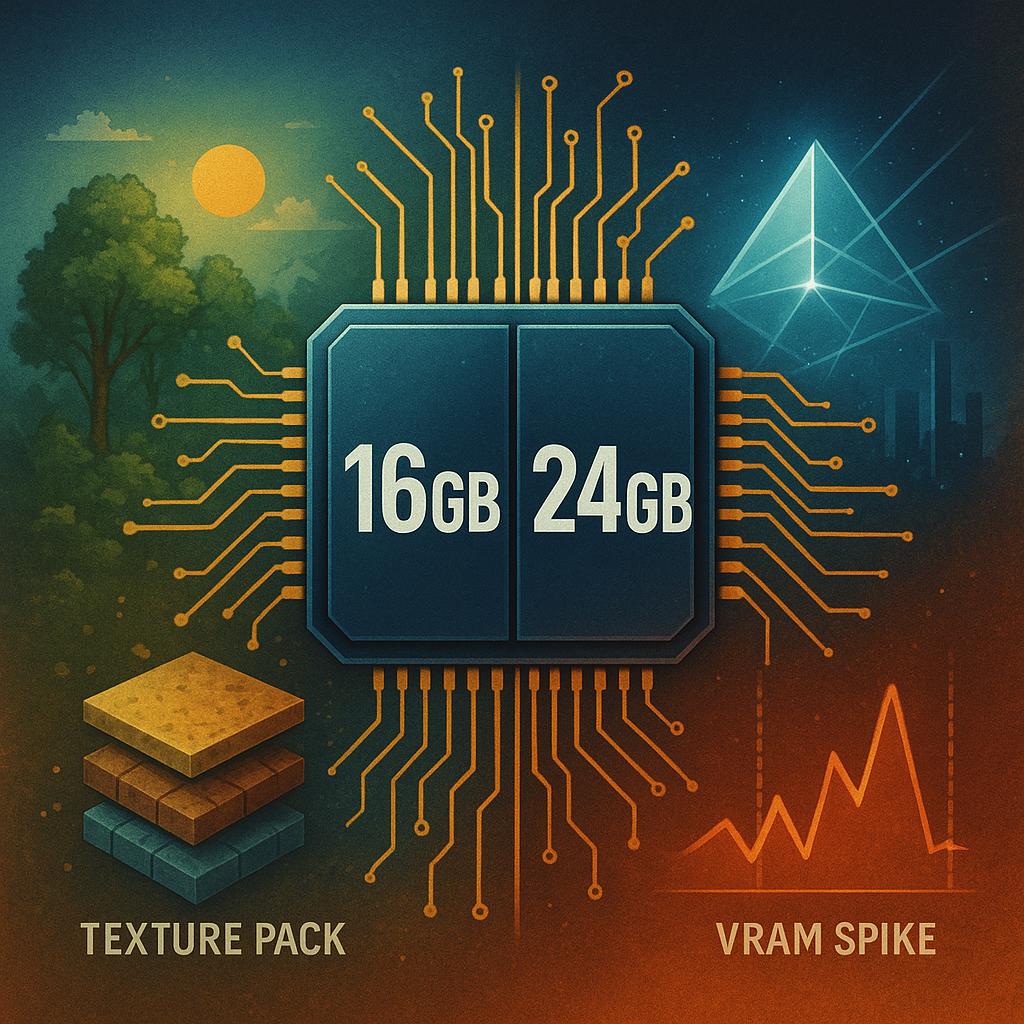
16GB vs 24GB in 2026 AAA Titles: Texture Packs, Ray Tracing, Frame Generation, and VRAM Spikes Explained with Real-World Scenarios
What actually eats VRAM now (and why “16GB” can still feel fast-until it doesn’t)
Modern AAA engines have become more “VRAM elastic” than “VRAM efficient.” They’ll happily fill whatever you give them, then punish you when you run out.
The practical difference between 16GB and 24GB isn’t average FPS. It’s how often you hit outlier moments: rapid streaming loads, heavy RT scenes, and UI-free camera pans.
When VRAM spills, you don’t just lose frames. You get stutter, frame-time spikes, texture pop-in, and occasional driver-level recovery.
Consumer level: 4K + texture packs + RT is the new “VRAM tax”
At 4K, the baseline footprint rises even before ray tracing. Add “Ultra/HD texture packs,” and you’re budgeting VRAM like a workstation.
Typical 4K setup patterns I’m seeing in current retail builds:
- High/Ultra textures can add 2-6GB depending on pack size and how aggressively the engine pins assets.
- Ray-traced reflections + GI commonly adds 1-4GB via extra buffers and denoiser history.
- Frame Generation often adds 0.5-1.5GB for additional frame buffers, motion vectors, and history surfaces.
- Open-world streaming can spike 2-5GB during fast travel, cutscene transitions, or rapid traversal.
The key detail: these costs don’t always stack predictably. Engines will temporarily allocate, then release, making “VRAM spikes” the real stability test.
16GB is still playable at 4K in many titles. But you’ll increasingly need “High” textures instead of “Ultra,” or dial back RT.
24GB is where you stop negotiating with settings. You keep RT on, keep textures maxed, and reduce spike-driven stutter.
Real-world scenarios (what users actually feel)
Scenario A: 4K + Ultra textures + RT + FG on a 16GB card
You load in fine, bench fine, then fast travel. VRAM spikes, the driver compresses and pages, and frame-time graphs sawtooth.
Symptoms are consistent:
- 1% lows collapse while average FPS stays “okay.”
- Texture LOD thrash (muddy-to-sharp cycling) during camera turns.
- One-time hitch entering new districts or stepping into dense interiors.
Scenario B: Same settings on 24GB
Average FPS may only rise a little. The difference is fewer hitches and far steadier frame pacing under traversal spikes.
Scenario C: 4K + High textures + selective RT on 16GB
This is the current “sweet spot” for many players. You protect 1% lows by leaving 2-3GB headroom for streaming surges.
Pro level: measuring VRAM spikes the way studios and labs do
If you only watch “VRAM used” in an overlay, you miss the problem. Spikes are about commit, residency, and paging behavior.
These are the tools I rely on in field diagnostics and performance audits:
- NVIDIA Nsight Graphics: Captures real GPU memory events and resource lifetimes.
- PIX on Windows: Breaks down allocations, residency, and barrier costs frame-by-frame.
- PresentMon: Flags frame-time outliers and correlates them with scene transitions.
- Windows Performance Analyzer (WPA): Reveals paging, CPU stalls, and IO contention during hitches.
- GPU-Z: Quick sanity check for VRAM sensors, bus behavior, and throttling indicators.
What recent captures show in “problem scenes” is rarely a single huge texture. It’s many medium allocations arriving at once.
Common culprits in current AAA render paths:
- Ray tracing acceleration structures growing with scene complexity and instance count.
- Denoiser history buffers multiplying with multiple RT effects at 4K.
- Virtual texture page caches expanding under rapid traversal and high anisotropy.
- Shader compilation + PSO cache misses causing stutter that users misattribute to “VRAM.”
Why 24GB helps: it reduces forced eviction. That means fewer “residency fights” between RT buffers and streaming textures.
Why 16GB still survives: engines are better at fallback. They’ll reduce mip residency, compress more, or drop cache size quietly.
The penalty is qualitative. You feel it as inconsistent sharpness and frame-time spikes, not just lower FPS.
Integrated ecosystem: settings, upscalers, and automation that change the VRAM math
The real-world experience now depends heavily on the platform stack: driver features, upscalers, capture tools, and background apps.
Three ecosystem trends are pushing VRAM pressure upward:
- Always-on capture/clip buffers in launchers and GPU suites reserving memory surfaces.
- Multi-monitor HDR + overlays keeping additional swapchains and composition buffers alive.
- AI-enhanced features (denoise, reconstruction, FG) growing history requirements.
And three trends push it downward-if you configure them correctly:
- DLSS/FSR/XeSS upscaling reducing render resolution and shrinking several render targets.
- Modern texture streaming options letting you cap cache sizes or prioritize stability.
- Driver shader caches reducing repeat stutter after the first run-through of a level.
Practical rule I use when tuning systems for clients: on 16GB, target a steady-state VRAM usage of 12-13.5GB at 4K.
That headroom absorbs spikes from fast travel, cutscenes, and RT-heavy interiors without paging.
On 24GB, you can run closer to the ceiling. You still want 2GB headroom, but it’s easier to keep “Ultra + RT” stable.
What this means specifically for texture packs, ray tracing, and frame generation
Texture packs are the most predictable VRAM eater. They increase baseline residency and raise spike amplitude during streaming.
Ray tracing is the most scene-dependent. It’s fine outdoors, then explodes in dense interiors with reflective materials.
Frame Generation isn’t “free VRAM.” It improves smoothness, but it can also push borderline 16GB configs into spike territory.
If you want a simple priority order on 16GB for 4K stability:
- Drop texture quality one notch before you drop everything else.
- Then reduce RT reflections (high cost, high volatility).
- Keep upscaling on; it often improves both performance and VRAM behavior.
- Use FG only if you still have headroom after the above changes.
On 24GB, you can generally do the opposite: keep textures and RT high, then adjust upscaling/FG for frame-time consistency.

Local AI Workflows on Consumer GPUs: Model Size, Context Length, and Quantization Choices That Decide Whether 16GB Is a Dead End
VRAM is the governor for local AI on consumer GPUs. Once you fill it, your workflow doesn’t “slow down a bit”-it changes class.
You either drop model size, slash context length, or accept offloading to system RAM. Offloading works, but it breaks real-time feel and increases latency spikes.
On a 16GB card, you can run a surprising amount of AI locally-until you add long context, tool use, and multimodal inputs. That’s when 24GB stops being a luxury and becomes “workflow insurance.”
Consumer Level: What 16GB Can Still Do (and Where It Suddenly Can’t)
Most consumer “local AI” is now a stack: chat + retrieval + a few automations. Each layer adds VRAM pressure, even when the base model fits.
Model size is the obvious part. Context length and KV cache are the silent killers.
Rule of thumb from current local builds: if you want smooth interaction with a decent context, budget VRAM for weights + KV cache + overhead. That overhead includes the runtime, tokenizer buffers, and sometimes vision encoders.
- llama.cpp: Runs quantized LLMs efficiently when you’re okay with careful tuning and a CLI-first mindset.
- Ollama: One-command local models for fast iteration, consistent model pulls, and easy switching.
- LM Studio: GUI-first local inference for people who want quick benchmarking and sane defaults.
Where 16GB hits the wall in practical home setups:
- Long context sessions (codebases, contracts, research papers) where KV cache dominates.
- Multimodal assistants (vision + text) where the vision tower and intermediate activations eat margin.
- Parallelism (running a second model for embeddings, or a second agent thread) that turns “fits” into “thrashes.”
24GB doesn’t just allow bigger models. It allows fewer compromises at once: longer context, higher-quality quantization, and room for embeddings or a vision encoder.
Pro Level: The Three Levers That Decide Whether Your GPU Feels “Real-Time”
Professionals rarely run “just a chatbot.” They run a pipeline: retrieval, structured tool calling, and guarded execution.
The VRAM outcome is decided by three levers: model size, context length, and quantization. Miss any one, and you start paying with latency, quality, or both.
1) Model Size: Bigger Isn’t Always Better-Until It Is
Small models win for quick drafting and simple reasoning. Medium models win once you need stable tool use and multi-step planning.
For many org workflows, the “sweet spot” is a model that’s strong enough to be consistent, not just clever. Consistency reduces re-runs, which reduces compute and time.
- vLLM: High-throughput serving when you’re running multiple sessions or offering inference as an internal service.
- NVIDIA TensorRT-LLM: Lower latency inference when you can commit to a more engineered deployment.
- Docker: Reproducible environments so model and driver changes don’t break your assistants during deadlines.
On 16GB, you’ll often prioritize a smaller model just to keep enough headroom for context and tooling. On 24GB, you can keep the stronger model and still run the rest of the stack.
2) Context Length: KV Cache Is the Budget You Don’t See
Context is not “free,” even when weights fit. The KV cache grows with sequence length, and it scales with model width and layer count.
That’s why a model that “runs fine at 4K tokens” can fall apart at 16K+ with the same VRAM. The card didn’t get weaker-you just allocated memory to history.
- RoPE scaling: Extends usable context but can trade off accuracy if pushed aggressively.
- Chunked retrieval: Limits prompt bloat by injecting only the most relevant passages.
- Sliding window attention: Keeps recent context without paying full price for the entire conversation history.
For real workflows-debugging, compliance review, incident write-ups-context length is productivity. If you constantly prune, you lose continuity and increase mistakes.
3) Quantization Choices: The Difference Between “Fits” and “Feels Good”
Quantization is not one setting. It’s a quality, speed, and stability dial.
On 16GB, you tend to quantize harder to fit. On 24GB, you can choose a quantization level that preserves reasoning and tool reliability.
- GGUF quantization: Easy local deployment with solid performance across consumer GPUs.
- AWQ: Strong quality per bit for weight-only quantization that often preserves instruction-following.
- GPTQ: Broad compatibility for compressing models that still need to behave predictably.
- BitsAndBytes (NF4): Practical 4-bit finetuning when you’re adapting models without enterprise hardware.
Quantization affects more than benchmark scores. It affects whether the model:
- stops hallucinating tool parameters
- keeps a stable persona across long sessions
- resists prompt injection when paired with retrieval
This is where 16GB starts to look like a dead end for “serious” local assistants: you’re forced into aggressive quantization and shorter contexts at the same time.
Integrated Ecosystem: Real Workflows Need More Than One Model
Modern local AI is a system, not a single process. The moment you add retrieval, you usually add an embeddings model and a vector database.
Then you add monitoring, caching, and guardrails-each bringing its own memory overhead and concurrency pressure.
- LangChain: Tool orchestration for routing tasks between retrieval, tools, and model calls.
- LlamaIndex: Retrieval pipelines that reduce prompt stuffing and improve answer grounding.
- Qdrant: Fast vector search for local-first retrieval on workstations and small servers.
- Grafana: Runtime observability so you can see latency spikes and memory pressure before users complain.
- OpenTelemetry: Trace everything across agents, tools, and model calls to find the real bottleneck.
Two patterns repeatedly show up in current-generation deployments:
- 16GB setups become “single-lane”: one main model, one task at a time, conservative context.
- 24GB setups become “multi-lane”: a higher-quality main model plus embeddings, rerankers, or vision-without constant memory triage.
If your workflow includes 4K gaming at max settings plus local AI, remember the practical reality: you can’t share VRAM between a game and an LLM at the same time without compromises.
One of them will win, and the other will stutter.
The most reliable hybrid setups this quarter are either:
- 24GB+ single GPU builds that can context-switch without pain.
- Dual-machine workflows where the gaming rig stays clean, and a small local AI box serves models over the LAN.
- Tailscale: Secure private networking for accessing your local inference box from your desktop and laptop without port-forwarding.
- Windows Subsystem for Linux (WSL2): Smooth dev parity for running Linux-native AI stacks on a Windows gaming machine.
- Proxmox VE: Lightweight virtualization when you want isolated AI services and snapshot-based rollback.
Bottom line: 16GB isn’t obsolete for local AI, but it is increasingly a “choose two” card: quality, long context, parallel tools. 24GB is where you stop budgeting every token like it’s rent.

Buy-Smart Upgrade Strategy: Matching VRAM to Your Monitor, Game Library, and AI Stack (Plus Cost-per-Frame and Time-to-Train Tradeoffs)
VRAM upgrades should be workload-matched, not hype-matched. The smartest path is to tie VRAM to three things: your monitor target, your “worst-case” game presets, and the largest AI job you actually run.
Think of VRAM as a hard ceiling.
When you hit it, performance doesn’t gently degrade-it can cliff-dive into stutter, asset pop-in, or outright crashes.
Consumer Level: Match VRAM to Display Target + Real Game Settings
At 4K, the practical VRAM driver isn’t “resolution” alone.
It’s the combo of textures, ray tracing, path tracing, heavy upscaler quality modes, and high-res asset packs.
Use this quick pairing rule:
- 16GB VRAM: Best for 4K with optimized settings (high textures, selective RT, tuned streaming), or 1440p high-refresh.
- 24GB VRAM: Best for 4K “set-and-forget” (ultra textures + RT/PT + big mods) and creator overlays running in the background.
- 32GB+ VRAM: Best for 4K max + heavy mod stacks and serious local AI without constant quantization compromises.
If you’re deciding strictly between 16GB and 24GB, look for this symptom:
Perfect average FPS but ugly 1% lows. That’s often VRAM pressure, not “GPU too slow.”
Practical observations from this year’s mainstream AAA builds show that 16GB is still viable, but it increasingly requires “adult supervision”:
- Texture setting one notch down from max in a few flagship titles.
- More reliance on upscalers (DLSS/FSR) rather than brute-force native rendering.
- Less tolerance for mods, reshades, 4K texture packs, and background capture tools.
Meanwhile, 24GB buys headroom for peak scenes, new patches, and larger texture heaps.
That headroom matters more than you think as games adopt heavier RT pipelines and denser streaming worlds.
How to “Prove It” on Your PC in 10 Minutes
Don’t guess-instrument your own workloads.
- CapFrameX: Pinpoints 1% low drops for stutter triage.
- MSI Afterburner + RivaTuner Statistics Server (RTSS): Real-time VRAM/frametime overlay while you play.
- PresentMon: Captures frame pacing data you can audit later.
Run your three worst-case scenes: a dense city hub, a heavy combat encounter, and your modded “stress save.”
If VRAM usage is riding the limiter and frametimes spike, 24GB will usually feel smoother even if average FPS barely changes.
Pro Level: Cost-per-Frame vs. “Smoother Frame Delivery”
“Cost-per-frame” is useful, but incomplete.
At 4K, the upgrade decision is often about cost-per-stutter-reduction-because VRAM limits punish consistency, not just peak FPS.
Use this structured comparison when shopping:
- Same GPU class, more VRAM: Expect modest average FPS change, but potentially large gains in 1% lows in VRAM-heavy titles.
- Higher GPU class, same VRAM: Expect higher average FPS, but you may still hit the same VRAM wall in pathological settings.
- Higher GPU class + more VRAM: Best overall, but only “worth it” if your monitor and library can exploit it.
A practical purchasing trick: price upgrades against your monitor objective.
If you’re on a 4K 120Hz OLED, your “value” is often stable frametimes more than raw FPS.
Current-generation calibration tools help quantify this instead of arguing online:
- NVIDIA FrameView: Logs power, clocks, and frame pacing for efficiency-aware comparisons.
- OCCT: Rapid stability validation after undervolting or memory tuning.
- HWiNFO64: Flags memory junction temps and throttling triggers.
Why this matters: a well-undervolted card can cut noise and heat, but it doesn’t create VRAM.
If you’re VRAM-bound, tuning helps less than moving to 24GB.
AI Stack: Time-to-Train and “Can I Even Load the Model?”
Local AI makes VRAM decisions brutally simple.
You either fit the model plus context plus KV cache-or you spill to system RAM and performance collapses.
For local LLM inference, the rule of thumb is still:
VRAM capacity sets your feasible model size and context.
This quarter’s real workflows commonly use:
- Ollama: One-command local model serving for fast iteration.
- LM Studio: GUI model testing with simple quantization and prompt/version management.
- vLLM: High-throughput serving with paged attention for better batching.
What changes between 16GB and 24GB isn’t just “bigger model.”
It’s fewer compromises in context length, fewer forced quantization steps, and less time wasted on memory juggling.
For image generation, VRAM maps directly to resolution, batch size, and comfort with extras like ControlNet.
- AUTOMATIC1111 Stable Diffusion WebUI: Flexible pipelines with extensions and control modules.
- ComfyUI: Node graphs to optimize VRAM and reproduce workflows reliably.
- PyTorch + CUDA: Fast kernels for training and fine-tuning when memory allows.
Time-to-train tradeoff is where 24GB quietly wins.
When 16GB forces smaller batch sizes, you often pay with more gradient accumulation and longer wall-clock time.
Even in inference-only setups, more VRAM reduces paging and keeps throughput predictable for assistants and automations.
Integrated Ecosystem: Automate Your Decision (and Your Future Workloads)
Smart upgrades aren’t just picking a GPU.
They’re building a feedback loop that tells you when VRAM is the limiter and whether “more VRAM” would actually pay off.
Utilizing current-generation monitoring and automation, you can turn this into a repeatable process:
- Home Assistant: Automates “quiet mode” profiles and cooling scenes when GPU load spikes.
- Windows Task Scheduler: Runs logging scripts before/after gaming or AI sessions automatically.
- Grafana + Prometheus: Long-term dashboards for VRAM, temps, and power across weeks of real use.
That ecosystem view matters because your GPU rarely runs alone.
Browser tabs, Discord streaming, capture tools, and local AI assistants all compete for memory headroom.
24GB becomes a stability purchase when your PC acts like a workstation, not a single-purpose console.
Buy-Smart Decision Matrix (What I Recommend in Practice)
- If you target 1440p high-refresh or 4K tuned settings, and your AI use is light: 16GB remains a rational buy.
- If you target 4K ultra textures + RT/PT, use mods, or run local AI weekly: 24GB is the safer floor.
- If you do frequent fine-tuning, larger context serving, or run multiple models/tools concurrently: consider 24GB as minimum, and price-check 32GB+ options if available.
Bottom line: 16GB isn’t “obsolete,” but it’s increasingly a managed configuration at 4K and a constraint amplifier for local AI.
24GB buys you fewer compromises, less troubleshooting, and smoother real-world delivery-not just prettier benchmark charts.
Common Questions
- Will 24GB increase my average FPS at 4K?
Sometimes slightly, but the bigger win is usually better 1% lows and fewer stutters when VRAM pressure spikes.
- Is 16GB enough for local LLMs?
It’s enough for many quantized models and moderate context, but 24GB expands context and reduces paging, which improves responsiveness and throughput.
- Should I prioritize VRAM or a faster GPU core?
If your overlays show VRAM hitting the ceiling, prioritize VRAM; otherwise, prioritize the faster core for higher FPS.
Disclaimer: This content is for general informational purposes only and isn’t financial, legal, or safety advice-verify compatibility, pricing, and risk before purchasing or modifying hardware.
Q&A
1) For 4K gaming in 2026, is 16GB VRAM actually “obsolete,” or just more demanding to manage?
Not obsolete, but increasingly tight at the top end. 16GB still delivers strong 4K results in many titles if you’re willing to tune settings, but it’s more likely to hit VRAM ceilings in modern “Ultra + ray tracing + high-resolution textures” scenarios. When a game exceeds VRAM, you can see stutter, texture pop-in, or sudden frame-time spikes as assets spill into system memory. A 24GB card mainly buys you headroom: fewer compromises on texture packs, RT, and poorly optimized releases-especially when you keep games open alongside browser/recording overlays.
2) What settings typically push 16GB over the edge at 4K-and what are the easiest “safe” cuts?
The biggest VRAM inflators are texture quality/texture pack size, ray tracing (plus RT reflections/shadows), heavy upscaling/AA modes combined with high internal render targets, and high-resolution shadows. The most painless cuts that often recover gigabytes without wrecking image quality:
drop textures one notch (especially from Ultra to High), reduce RT quality or disable the heaviest RT features first, and trim shadow resolution. These typically preserve “4K sharpness” far better than reducing resolution or aggressive post-processing.
3) For local AI (LLMs, Stable Diffusion, video upscaling), when does 24GB feel like a different class than 16GB?
When your workload is VRAM-bound, 24GB can be the difference between “it runs” and “it doesn’t,” or between “fast” and “painfully offloaded.” In practice:
LLMs benefit because larger models and longer context windows fit more cleanly on-GPU; with 16GB you’ll rely more on quantization, smaller models, or partial CPU/RAM offload (often slower and more finicky).
Stable Diffusion benefits when you push higher resolutions, larger batch sizes, multiple ControlNets, or heavier upscalers without memory errors.
If you mainly run modest models, use aggressive quantization, and keep resolutions/batches reasonable, 16GB remains workable. If your goal is “no compromise” local experimentation, 24GB is the comfort zone.
Summary of Recommendations
VRAM capacity has stopped being a mere spec-sheet flex and started behaving like working memory: once you’re below the threshold, no amount of raw compute feels “fast” because you’re constantly paying the penalty of streaming, swapping, or compromising asset quality. For 4K gaming, 16GB still isn’t universally obsolete-but it’s no longer comfortably future-proof when modern engines pair higher-resolution textures with ray-traced pipelines and heavier frame-generation buffers. For local AI, the math is even less forgiving: model size, context length, and batch/concurrency demands turn VRAM into a hard ceiling, and 24GB meaningfully raises that ceiling for real workflows (larger models, higher-token contexts, fewer quantization compromises, and smoother multi-app use).
What matters most is how you like to work and play. If you treat 4K as “native, max textures, RT on, no excuses,” 24GB increasingly looks like the capacity that keeps you out of the penalty box over the next few years. If you’re willing to be pragmatic-texture tiering, selective RT, occasional upscaling, and smart game settings-16GB can still deliver excellent 4K experiences today. On the AI side, 16GB remains viable for quantized LLMs, smaller diffusion models, and single-task inference; but 24GB is the difference between “it runs” and “it runs comfortably with headroom,” especially when you want larger context windows, better quality settings, or multiple sessions and tools open at once.
Expert tip: make the purchase decision like a capacity planner, not a benchmark shopper. List your top three “uncompromising” use cases (e.g., 4K + RT in two specific titles, stable diffusion at your preferred resolution/batch, a target LLM size with a target context length), then aim for 20-30% VRAM headroom beyond what those tasks typically consume. That headroom is where smooth frametimes, faster iteration, and “no surprise” stability live-and it’s also what protects you against the next wave of heavier texture packs, path-tracing updates, and longer-context AI tooling. If you expect to keep the GPU for several years, buying VRAM you can’t saturate today is often the most rational form of future-proofing you can still do.

is a hardware analyst and PC performance specialist. With years of experience stress-testing components and tuning setups, he relies on strict benchmarking data to cut through marketing fluff. From deep-diving into memory latency to testing 1% low bottlenecks, his goal is simple: helping you build smarter and get the most performance per dollar.